
Creating a store user
Give each store its own login.
Each store needs its own user to log in to Smooth POS. That user needs the Enter POS transactions right.
The easiest way to give a store everything it needs is the built-in Store security group, which includes the basic store rights.
Create the user
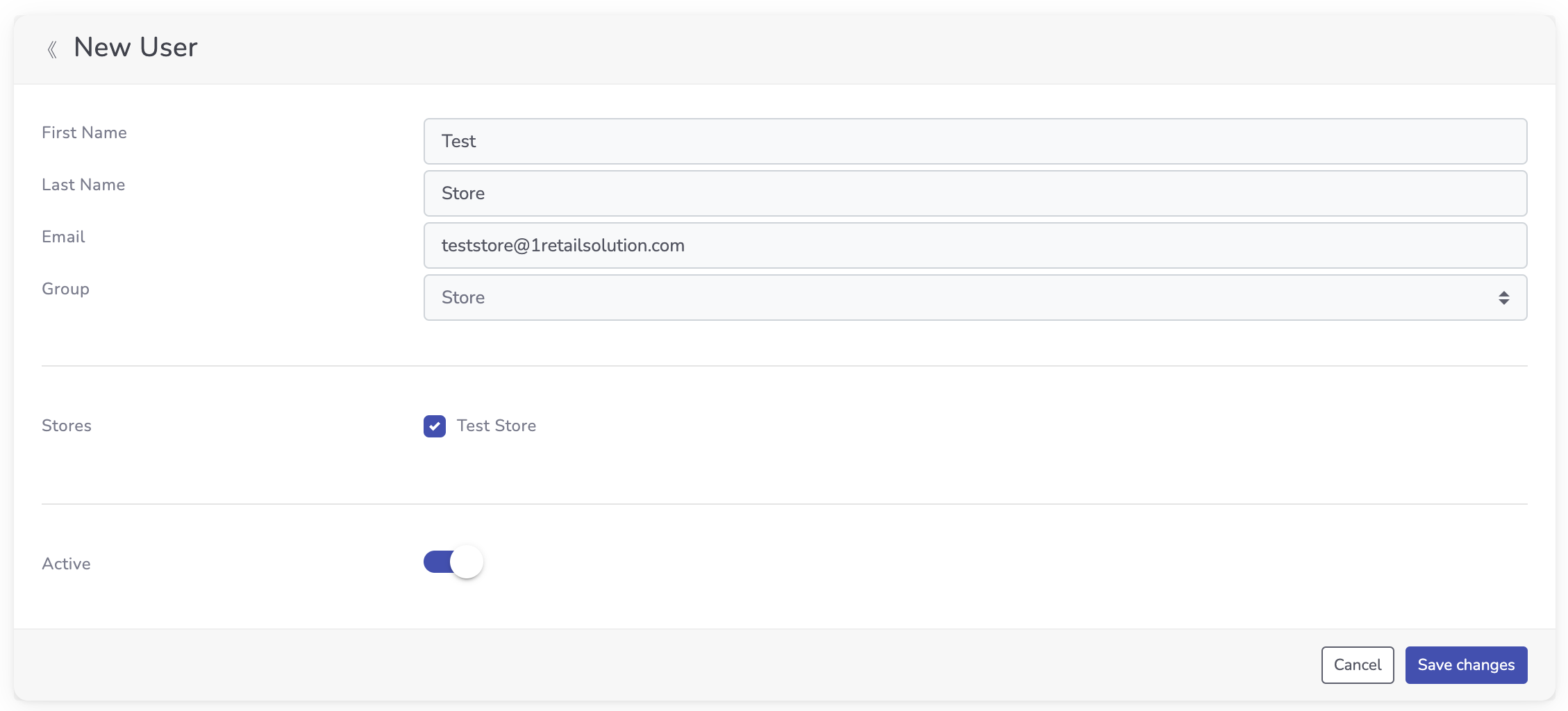
- In Smooth POS, go to Admin → Users.
- Select New User.
- Enter a First Name and Last Name.
- Enter the store's Email address.
- Set Group to Store.
- Choose which stores this user can access. If you leave this blank, the user can access all stores.
- Select Save Changes.
Use a real email addressSmooth POS sends a one-time password (OTP) to this email address each time the store logs in. Make sure it's an inbox the store can check.
Your store user is ready to log in and start trading.
Next steps
- Add your sales staff so each person can ring up sales with their own POS code.
- Process your first sale.
Connecting another system?API access uses a separate API user (Admin → Users → API Users), not a store user. See Getting Started.
Updated 26 days ago
What’s Next
Did this page help you?