
Creating a store
Set up a new store and its first register.
Each store in Smooth POS has its own address, warehouse and registers. Here's how to create one and get a register ready to trade.
1. Create the store
- In Smooth POS, go to Register → Stores.
- Select New Store.
- Give the store a name and enter its address.
- Leave Create Warehouse switched on to create a new warehouse for this store. If you'd rather link the store to a warehouse you already have, switch it off.
- Select Save Changes.
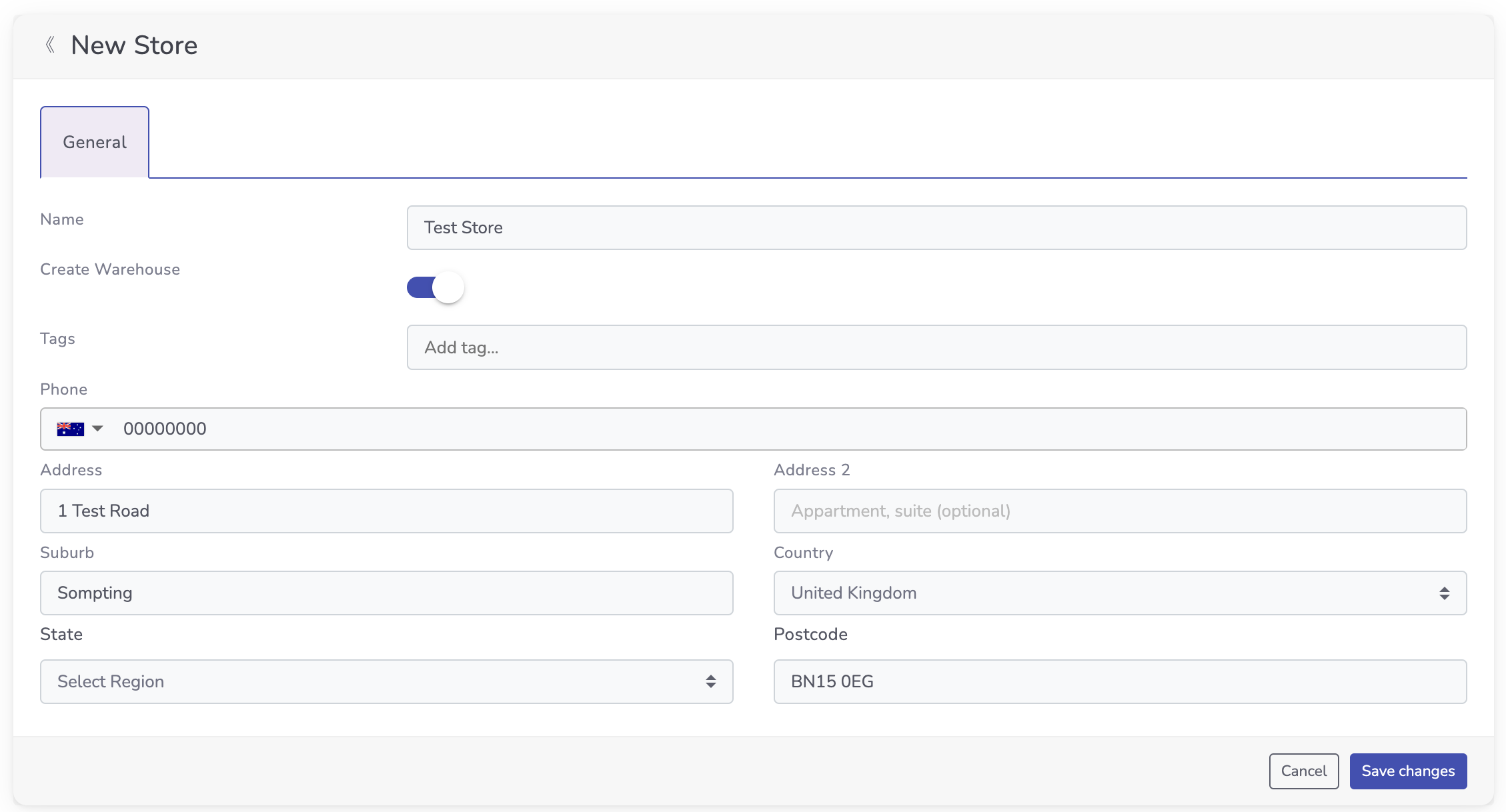
Your new store now shows in the Stores list.
2. Add a register
- Select your store in the Stores list to open its settings.
- Open the Registers tab and select New Register.
- Enter the register's Name and pick a Register Template.
- Enter your Cash Float.
- Enter the fixed IP address of your Epson receipt printer and tick Generate Printer SSL Cert.
- Select Save Changes.
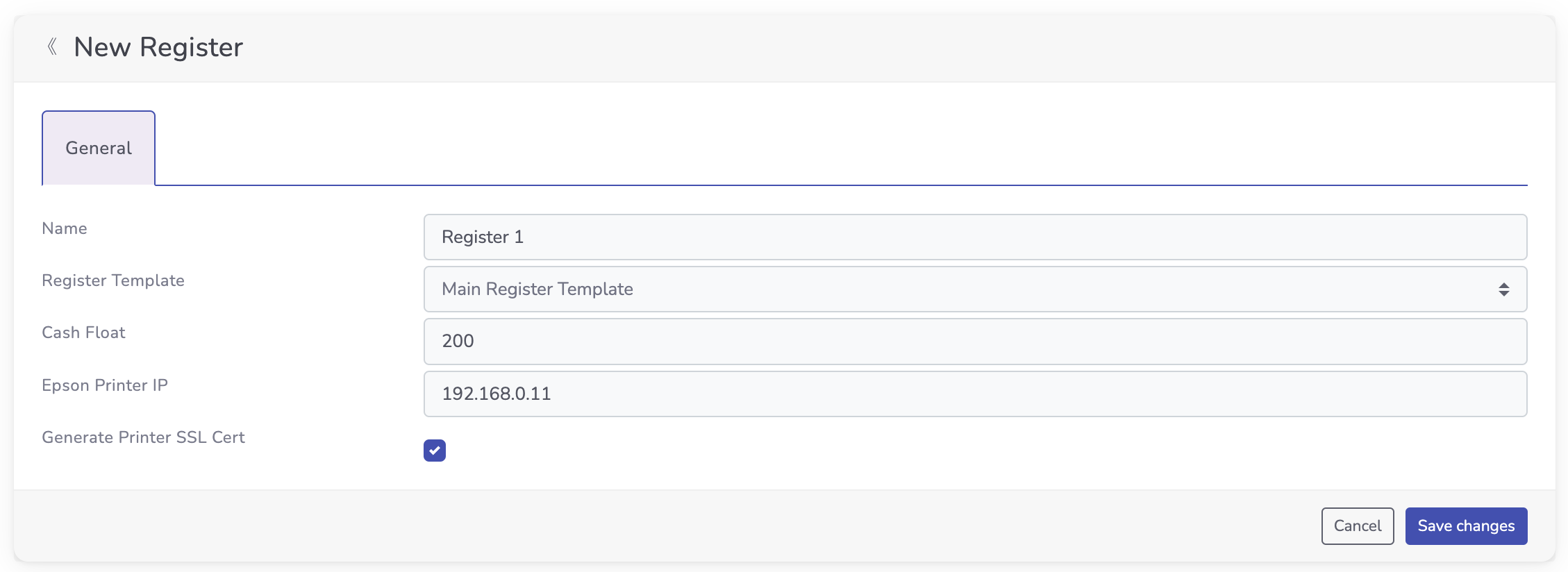
That's it: your store and register are set up.
Next steps
- Set up your Epson printer so the register can print receipts.
- Create a store user so the store can log in.
Working with the API?Use List stores to read your stores, and Get a store to see which warehouse a store sells from.
Updated 26 days ago
Did this page help you?