
Creating Glue integrations
Build Glue jobs that react to changes in Smooth POS, take in data from other systems, or run on a schedule, in the app or through the API.
Glue is Smooth POS's integration system. Instead of writing a service that keeps asking the API "has anything changed?", you build a Glue job and Smooth POS runs it for you: when something happens, when another system sends you data, or on a schedule.
This guide walks you through building Glue jobs in the app's job editor and through the API, with worked examples you can copy.

How Glue works
A Glue job has a trigger (what starts it) and a list of steps (what it does, in order). The data that started the run is handed to your first step, each step can save results for later steps, and an If Condition step lets you branch.
| How it runs | What it's for |
|---|---|
| System Hook | Smooth POS runs your Glue job when something changes, whether through the API, the Smooth POS screens or another Glue job. See System hooks. |
| Webhook | Your Glue job gets its own URL that other systems send data to. See Inbound webhooks. |
| Scheduled | Your Glue job runs on its own at set times. See Schedules. |
Five things to know before you start
- There are two ways to reach your variables. In a Script step and an If Condition, variables are on
$, like$.sale_id. In every other field (URLs, headers, post data, endpoints), you use Liquid templates, like{{ sale_id }}. Writing$.sale_idin a URL field just sends the text$.sale_id. - The incoming data is a string. Whatever started the run is in
$.defaultas raw text, so start your first script withvar d = JSON.parse($.default);. - Responses have a string body. A step's Response variable gets
{status, body, headers}, andbodyis a string, so parse it:JSON.parse($.store_res.body). - Conditions must be exactly
true. An If Condition runs its steps only when the expression is the booleantrue. Anything else, including a truthy string or number, runs the else steps instead. Write$.send_event === true, not$.send_event. - Tests run for real. Every API call, email and Shopify call in your job actually happens when you test it.
"Fail on bad response code" stops the run, and the run is retriedWhen it's on and a call returns a non-2xx status, the job stops and is retried. Top-level calls and emails that already succeeded are skipped on the retry, but steps inside an If Condition or a Loop run again. See Order your steps so retries are safe.
Build a Glue job in the app
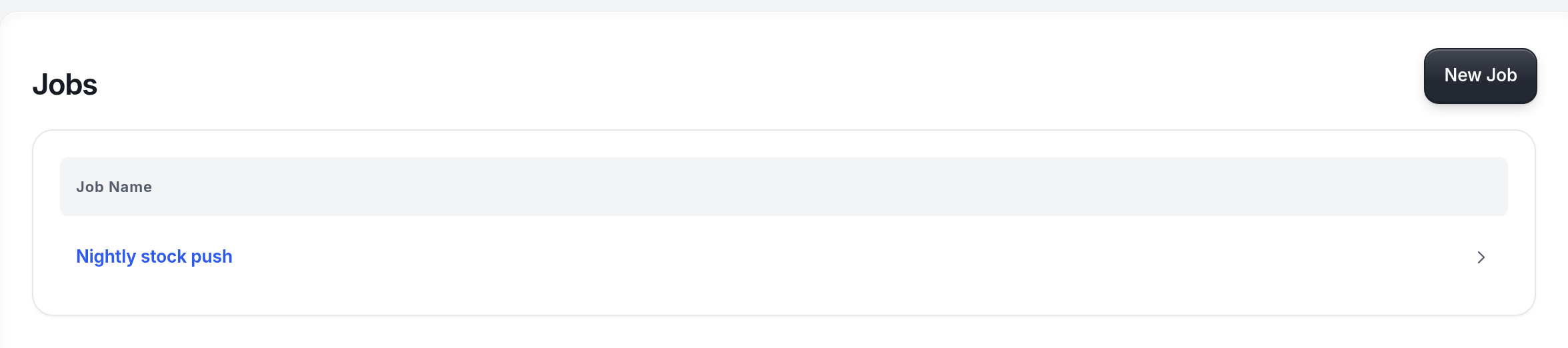
- Go to Glue › Jobs and select New Job.
- Under Details, give it a Name that says what it does, like "Send paid sales to marketing".
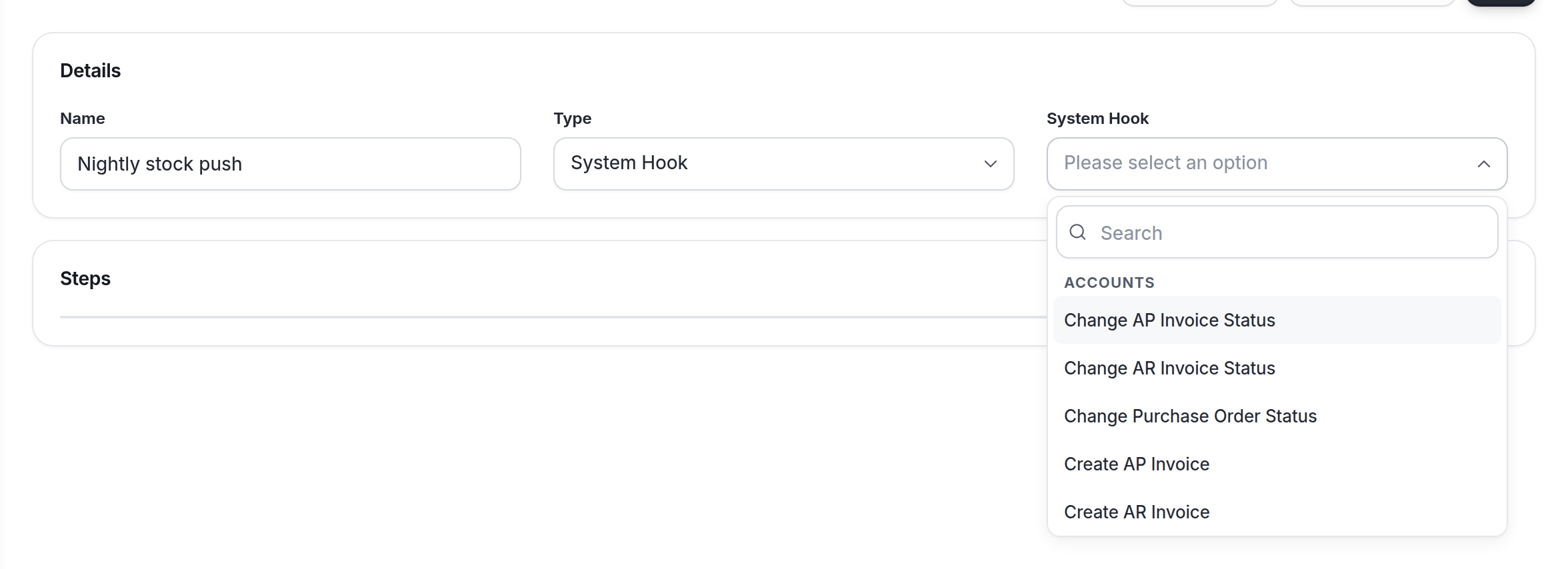
- Choose a Type: System Hook, Webhook or Scheduled. For a system hook, pick the event from the System Hook list. It's searchable and grouped by area, and shows each event by name (like Create Log Entry) rather than its API trigger.
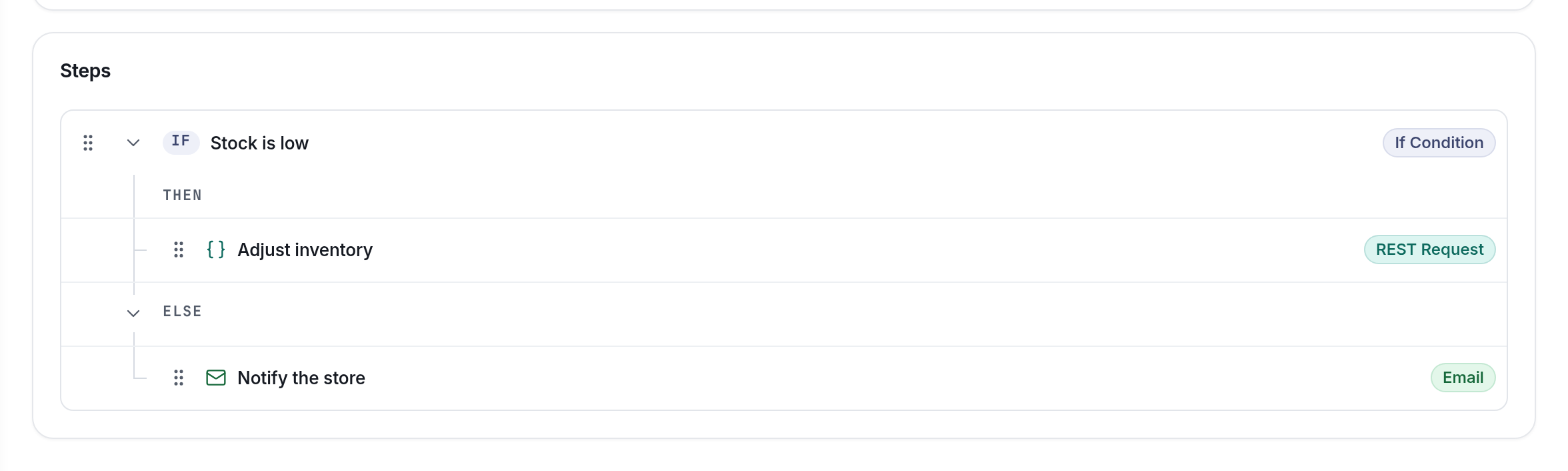
- Select New Step Item to add steps, and drag them into order. Drop steps into an If Condition's THEN or ELSE branch to nest them.
- Use More actions › Variables to add the job variables your steps need.
- Select Run to test the job with a sample payload, then Save changes.
In the step editor, the Type buttons choose what a step does. Each one maps to a type in the API:
| Step Type in the app | type |
|---|---|
| API Request | api |
| REST Request | rest |
| If Condition | if |
| Loop | foreach |
| Script | script |
email | |
| Header | header |
| Delay | sleep |
| Shopify GraphQL | shopify_graphql |
Every step also has a Name and an Enabled switch. Turning Enabled off is the same as disabled: true in the API. Fields that take text have a Variables menu that inserts a {{name}} for you.
Job variables
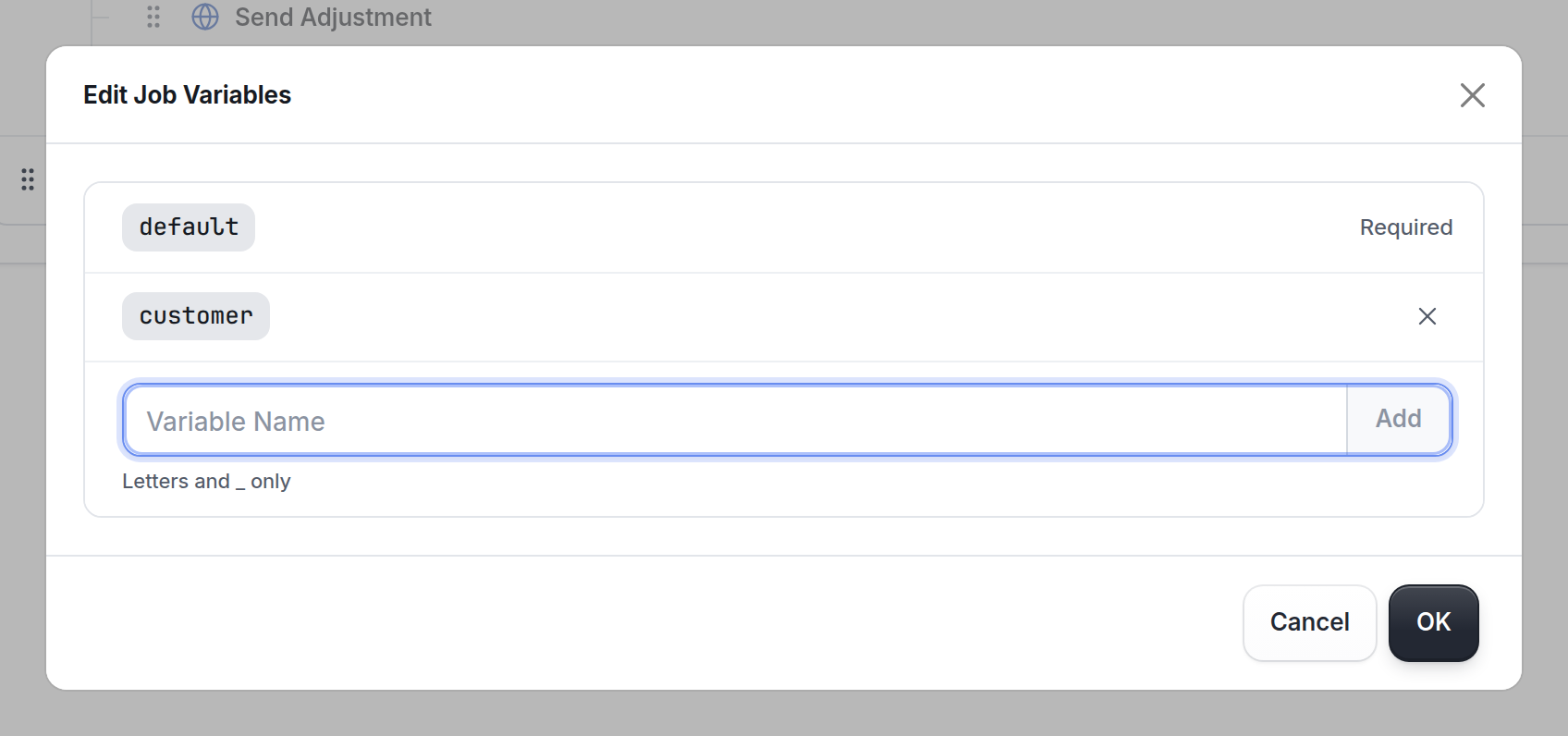
More actions › Variables opens Edit Job Variables. default is always there, because it holds the data that started the run. Add any others your steps use, with names made of letters and _ only.
Build a Glue job through the API
Create a Glue job with Create a Glue job. variables must be an object, even if it's empty:
curl -X POST https://api.smoothpos.net/glue.json \
  -H "X-Smoothpos-Auth: YOUR_TOKEN" \
  -H "Content-Type: application/json" \
-d '{"name": "My webhook glue", "type": "webhook", "variables": {}, "steps": []}'- For a system hook, use
"type": "system hook"and add atrigger, such as"sale_create". - For a schedule, use
"type": "scheduled"and add aschedule.
The response is the full Glue job, including its id and the guid and auth for its webhook. To change it, send the same body plus id to Update a Glue job. It replaces the whole Glue, so always send every step.
Each step has a name, a type, a disabled flag and its settings in data:
{ "name": "Read the sale", "type": "script", "data": "{\"script\":\"$.sale = JSON.parse($.default);\"}", "disabled": false, "steps": [] }
datais a JSON-encoded string
dataisn't an object: it's a string holding JSON, so the quotes inside it are escaped. Sending an object there makes the step fail.
| To | Use |
|---|---|
| See all your Glue jobs | List Glue jobs |
| See one Glue job in full | Get a Glue job |
| Add a Glue job | Create a Glue job |
| Change a Glue job | Update a Glue job |
| See what went wrong | List Glue errors |
React to changes (system hooks)
A system hook runs your Glue job whenever something changes. It's the best way to keep another system up to date: Smooth POS tells your Glue job about the change, and your Glue job passes it on.
trigger | Runs when |
|---|---|
sale_create, sale_update | a sale is created or changed |
customer_create, customer_update | a customer is created or changed |
product_create, product_update, product_delete | a product is created, changed or deleted |
item_create, item_update, item_delete | an item (variant) is created, changed or deleted |
price_add, price_update, price_delete | a price changes |
inventory_adjust, inventory_move | stock is adjusted, set or moved |
fulfillment_create, fulfillment_status_change, fulfillment_ship | fulfillments change |
purchaseorder_create, purchaseorder_status_change | purchase orders change |
shipment_status_change | a shipment's status changes |
stocktake_create, stocktake_status_change | stocktakes change |
giftcard_create, loyalty_adjust, storecredit_adjust | gift cards, loyalty or store credit change |
posstaff_create | a staff member is created |
log_create | a log entry is created |
Those are the most common ones. You'll find every trigger, grouped by resource, in Create a Glue job.
Bulk loads don't fire per-record hooksCreate products in bulk and Create sales in bulk don't fire
product_createorsale_createfor each record, so a Glue job on those triggers won't see bulk loads.
What your Glue job receives
The event's data arrives as a string in $.default.
- Create and delete events send the full record. For
sale_create, that's the saved sale, in the same shape as Get a sale. Its fields includeid,store_id,register,receipt_number,customer_id,employee_id,status,shipping,shipping_tax,tags,metadata, the totals Smooth POS worked out (total_price,total_tax,total_discount,total_quantity,total_paid), and thelinesandpaymentsarrays.- Each line has
item_id,barcode,quantity, and the per-unititem_price,item_tax,item_discountanditem_loyalty, plusitem_discount_reason,item_promotions,serial_number,tagsandmetadata. - Each payment has
payment_method_id,name,amount,register,store_idandmetadata.
- Each line has
- Update and status-change events send
{"before": {…}, "after": {…}}, so you can see exactly what changed. - A few have their own shape:
loyalty_adjustsends{before, after, adjustment},storecredit_adjustsends{customer_id, amount}, andinventory_adjustandinventory_movesend an array of rows, up to 50 at a time.
Events can arrive out of orderEach event is delivered on its own, and failed runs are retried, so a
customer_updatemight reach you before thesale_createthat caused it. Use IDs,before/afterand the other system's de-duplication key rather than relying on order.
subtrigger
subtriggerLeave subtrigger empty. Its one use is with log_create: set it to a log category to run only for logs in that category.
Receive data from other systems (webhooks)
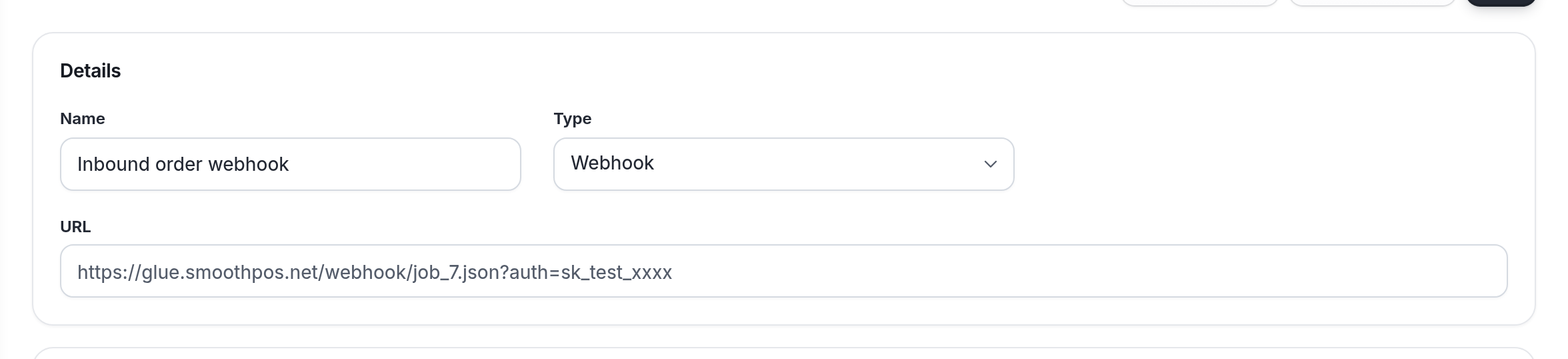
Give a Glue job "type": "webhook" (or choose Webhook in the app) and it gets its own URL. When you save it, you get a guid and an auth secret, and your URL is built from those:
https://glue.smoothpos.net/webhook/<guid>.json?auth=<auth>- Send a
POST(or aGET) with any content type. The raw body reaches your Glue job as the string$.default.
Keep your webhook URL privateTreat the URL like a password: anyone who has it can run the job. There's no signature to check.
In the app, a Webhook job shows its full URL under Details, with the secret already in the ?auth= part. There's no separate screen for it, so copy the whole URL.
| Response | Meaning |
|---|---|
200 {} | Accepted. The job runs a moment later, in the background. |
400 {"err": "invalid job"} | There's no Glue with that guid. |
404 {} | The auth is wrong, or the URL doesn't end in .json. |
The Glue service uses err rather than error in its responses.
Run on a schedule
Give a Glue job "type": "scheduled" and a schedule, and it runs on its own. Two fields decide when:
| Field | |
|---|---|
cron_string | A standard 5-field cron expression, such as */30 * * * * for every 30 minutes. |
timezone | The time zone for the cron expression, such as Australia/Sydney. |
"schedule": { "cron_string": "0 6 * * *", "timezone": "Australia/Sydney" }
Changing only the time zone?Change
cron_stringin the same update, or the new time zone won't take effect.
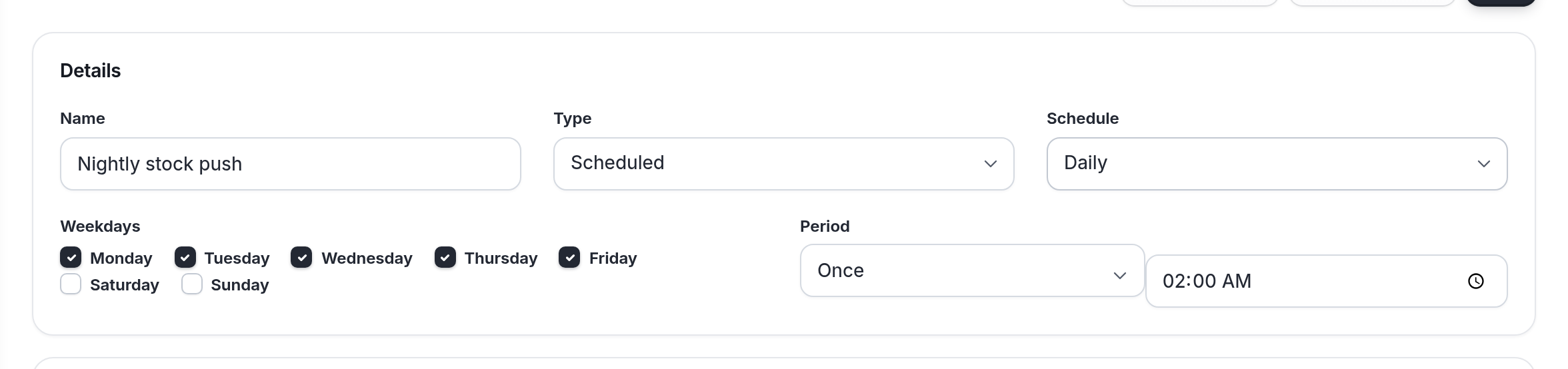
In the app, a Scheduled job has Schedule, Weekdays and Period settings and a time, and the app works out the cron expression for you.
Steps reference
Step type | What it does | data fields |
|---|---|---|
api | Calls the Smooth POS API as your company. | end_point, action (GET, POST, PUT, DELETE, PATCH), post_body, response_variable, fail_bad_status |
rest | Calls any other HTTP API. | url, action, headers, post_body, response_variable, fail_bad_status |
email | Sends an email. | from_email, from_name, to_email, to_name, email_reply_to, email_subject, email_body, email_template (-1 to use email_body) |
script | Runs JavaScript. | script |
if | Runs steps when condition is true, and else_steps otherwise. | condition |
foreach | Runs its nested steps once per element. | variable_to_iterate, index_variable, data_variable |
shopify_graphql | Calls the Shopify GraphQL API. | end_point, action, api_version, gql_query, gql_variables, response_variable, fail_bad_status |
header | Copies an incoming request header into a variable. | header, response_variable |
sleep | Waits before the next step. | duration in seconds. Anything over 60 waits 60. |
Scripts
A Script step runs plain JavaScript. Your variables are on $, and anything you set on $ is there for later steps:
var sale = JSON.parse($.default);
$.sale = sale;
$.sale_id = sale.id;
$.store_id = sale.store_id;- You get
$and the standard JavaScript built-ins:JSON,Math,Date,RegExp, string and array methods,parseInt,encodeURIComponentand so on. - You also get
consoleandbtoa/atob.console.log,info,warnanderrorshow up in the job editor's Console when you select Run (see Test and debug).btoaandatobwork like they do in a browser.btoaonly takes Latin-1 text, so for UTF-8 usebtoa(unescape(encodeURIComponent(s))). - There's no
fetch,setTimeout/setIntervalorrequire. Use REST Request steps for HTTP calls. - Each Script step or If Condition can run for up to 60 seconds. After that it's stopped with a
halterror. See Limits. - Functions you define in one Script step are still there in later steps of the same run.
If Condition: then and else
An If Condition's data holds one field, condition, which is a JavaScript expression with your variables on $:
{
  "name": "VIP customer?",
  "type": "if",
  "data": "{\"condition\":\"$.customer && $.customer.total_spent > 1000\"}",
  "steps": [
    { "name": "Tag VIP", "type": "script", "data": "{\"script\":\"$.tag = 'vip';\"}" }
  ],
  "else_steps": [
    { "name": "Tag regular", "type": "script", "data": "{\"script\":\"$.tag = 'regular';\"}" }
  ]
}- When the condition is exactly
true,steps(the then branch) run. Anything else (false, a string, a number,undefined) runselse_steps. - Use normal JavaScript operators:
===,!==,>,<,&&,||,!, method calls and so on. - Both branches can hold any steps, including more If Conditions with their own else branches, as deep as you need.
- If the expression throws an error, the run stops.
Liquid templates
In api, rest, email and shopify_graphql steps, text fields are Liquid templates over your variables, so you can write {{ sale.receipt_number }}. Handy filters:
url_encodemakes a value safe for a query string (spaces become+), e.g.?since={{ since | url_encode }}.currency: "AUD"formats a number as money, e.g.{{ total | currency: "AUD" }}gives$1,234.50.barcodereturns the URL of a PNG barcode:{{ sku | barcode: "code128", 300, 100 }}(use"code128"or"qrcode", then width and height).parse_jsonturns a JSON string into an object or array:{% assign o = body | parse_json %}{{ o.id }}. Invalid JSON fails the step.- The usual standard filters work too, including
default,json,date,join,split,size,first,last,replace,append,prepend,upcase,downcase,strip,truncate,escape,url_decode,plus,minus,times,divided_byandround.
Shopify-style filters aren't available
money,handleize,base64_encode,md5,sha256,hmac_sha256,where,sum,at_leastandat_mostwon't work in Glue jobs. Need base64? Usebtoain a Script step.
REST Request headers
headers is a string holding either a JSON object or a JSON array, with string values. Either of these works:
{"Authorization": "Bearer {{ token }}", "Accept": "application/json"}[{"name": "Authorization", "value": "Bearer {{ token }}"}, {"key": "Accept", "value": "application/json"}]In the array form, each entry needs a name (or key) and a value. Leave the field empty, or use {} or [], to send no extra headers.
Invalid headers fail the stepA non-string value (like
{"X-Retry": 3}), an array of plain strings (like["Authorization: x"]), an entry with no name or value, or anything that isn't JSON makes the step fail with an error, which you'll see in the Console when you select Run, and in Glue errors.
Building the headers in a script is often easier. Set $.headers = JSON.stringify({...}) and put {{ headers }} in the Headers field.
The "not valid JSON" warning is fine hereWith
{{ headers }}in Headers (JSON), the editor warns that the field isn't valid JSON. That's because it checks the template before your variables are filled in. The step still saves and works.
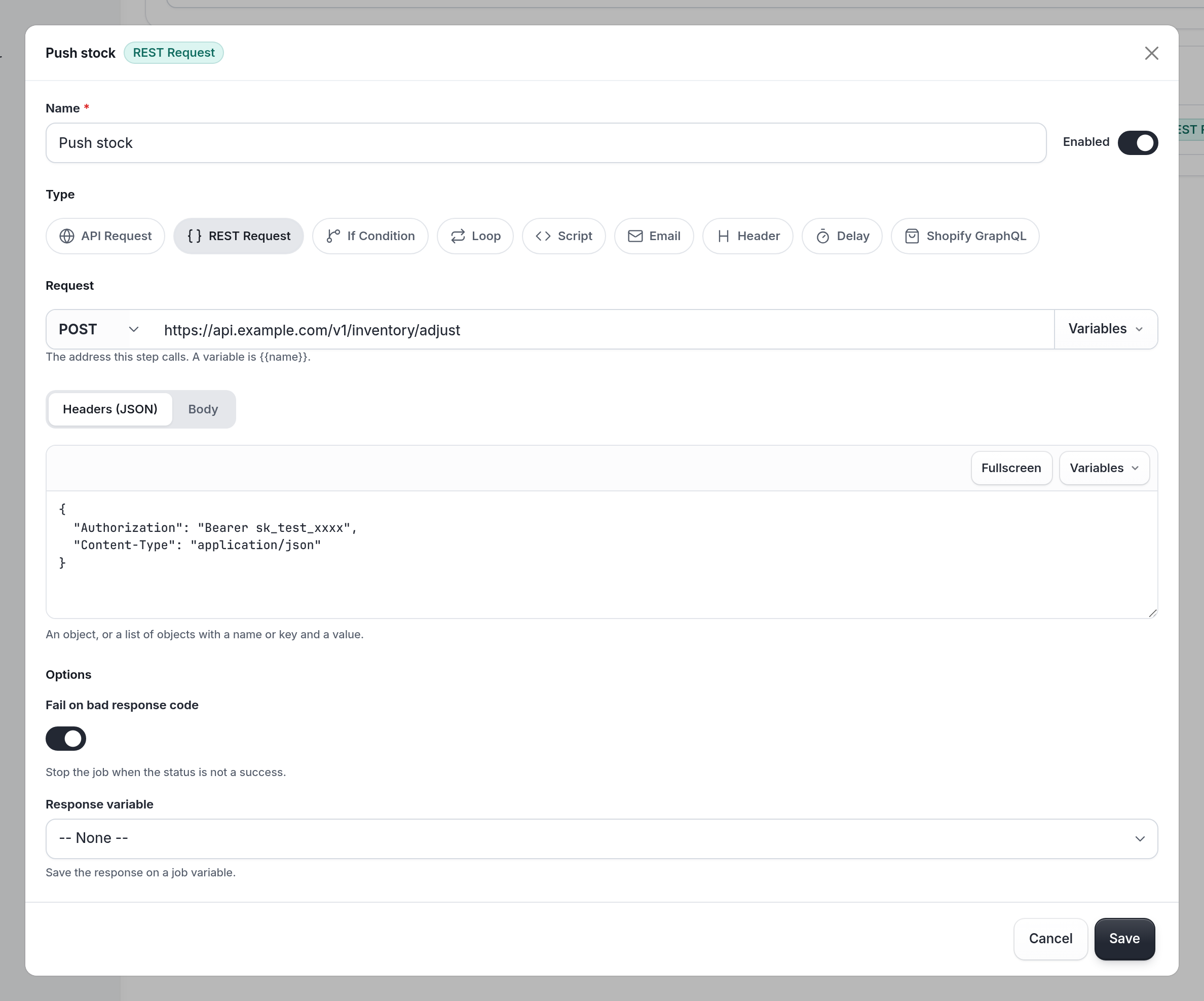
In the app, the REST Request step has the method and URL on one line, then Headers (JSON) and Body tabs. Under Options you'll find Fail on bad response code and Response variable.
Responses
A response_variable gets {status, body, headers}, with body as a string. Turn off Fail on bad response code (fail_bad_status: false) when you want to handle a failed call yourself in the next script.
Loops (foreach)
foreach)foreach runs its nested steps once per element of variable_to_iterate. Declare the index_variable and data_variable names before the loop (for example $.i = 0; $.product = null; in a script, or in the job's variables) so they're filled in on each pass.
Skipping steps
disabled: true skips a step and everything nested under it, including its else branch.
Example 1: Send a "sale paid" event to an external API
Goal: when a sale is paid, send an event to a marketing platform (here, Klaviyo's Events API) with the sale total, the items and the store name.
Trigger: System Hook, sale_create. The variant uses sale_update.
Settings in private data: keep the integration's settings and API key in one private data key, like marketing, holding JSON like this:
{
  "api_key": "pk_xxxxxxxxxxxxxxxx",
  "send_sales_events": true,
  "sales_event_name": "Placed Order",
  "exclude_stores": []
}
That gives you an on/off switch, a configurable event name and a way to leave out some stores, all without editing the job.
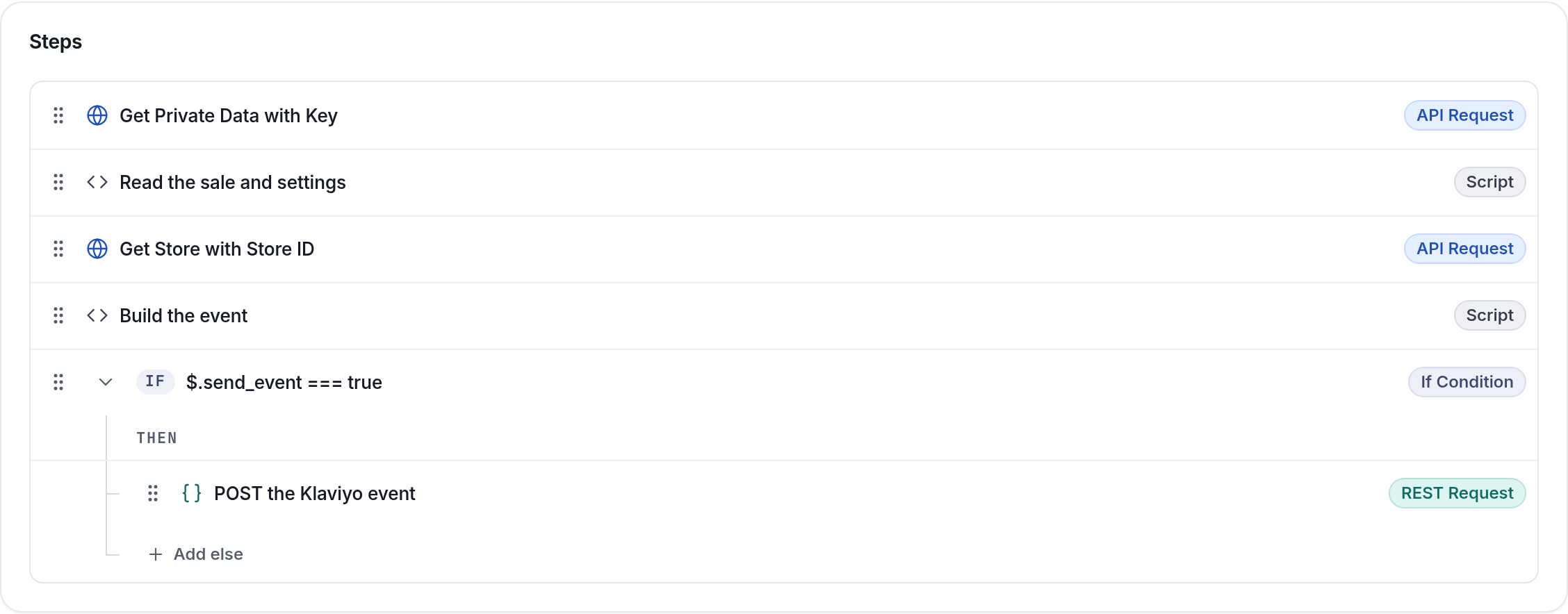
1. API Request: Get Private Data with Key
- Key:
marketing - Response variable:
config_res - Fail on bad response code: on. If the settings can't be read there's nothing useful to do, and nothing has been sent yet, so a retry is safe.
2. Script: Read the sale and settings
var sale = JSON.parse($.default);
$.sale = sale;
$.sale_id = sale.id;
$.store_id = sale.store_id;

// Private data comes back as {"<key>": "<stored string>"}, so parse twice
var cfg = JSON.parse(JSON.parse($.config_res.body).marketing);
$.event_name = cfg.sales_event_name || "Placed Order";

var excluded = (cfg.exclude_stores || []).map(Number);
$.send_event = cfg.send_sales_events === true
  && sale.status === "paid"
  && excluded.indexOf(Number(sale.store_id)) === -1;

$.headers = JSON.stringify({
  "Authorization": "Klaviyo-API-Key " + cfg.api_key,
  "revision": "2026-07-15",
  "Content-Type": "application/vnd.api+json",
  "Accept": "application/vnd.api+json"
});
3. API Request: Get Store with Store ID
- Store ID:
{{ store_id }} - Response variable:
store_res - Fail on bad response code: off. The store name is nice to have. If the lookup fails, the event should still go out with a blank store name rather than the whole job retrying.
4. Script: Build the event
var sale = $.sale;
var storeName = "";
if ($.store_res && $.store_res.status === 200) {
  storeName = JSON.parse($.store_res.body).name || "";
}

var customer = sale.customer || {};
var profile = {};
if (customer.email) profile.email = customer.email;
if (sale.customer_id) profile.external_id = String(sale.customer_id);

$.event_body = JSON.stringify({
  data: {
    type: "event",
    attributes: {
      properties: {
        SaleID: $.sale_id,
        ReceiptNumber: sale.receipt_number,
        StoreID: sale.store_id,
        StoreName: storeName,
        Items: (sale.lines || []).map(function (l) {
          return { ItemID: l.item_id, Quantity: l.quantity, Price: l.item_price };
        })
      },
      value: sale.total_price,
      time: sale.created,
      unique_id: "smoothpos-sale-" + $.sale_id,
      metric: { data: { type: "metric", attributes: { name: $.event_name } } },
      profile: { data: { type: "profile", attributes: profile } }
    }
  }
});

// The event needs someone to attach it to
$.send_event = $.send_event === true && (!!profile.email || !!profile.external_id);
5. If Condition
- Condition:
$.send_event === true
5a. REST Request (in the then branch)
- Method:
POST - URL:
https://a.klaviyo.com/api/events/ - Headers (JSON):
{{ headers }} - Body:
{{ event_body }} - Fail on bad response code: on
- Response variable:
event_res
Why unique_id matters
unique_id mattersunique_id: "smoothpos-sale-{id}" tells Klaviyo "this is the event for this sale". If the job is retried, or the create and update jobs both fire for the same sale, Klaviyo keeps one event instead of counting the sale twice. Whatever API you're calling, look for its idempotency or de-duplication field and build it from the Smooth POS ID.
Variant: only send when a sale becomes paid
A sale can be created partly paid and paid off later. To catch that, make a second Glue job on sale_update with the same steps. Update events send {"before": {…}, "after": {…}}, so change step 2 to read after and compare it with before. In the editor the step list looks just like Example 1's: only the trigger and the step 2 script are different.
var payload = JSON.parse($.default);
var before = payload.before || {};
var sale = payload.after || {};
$.sale = sale;
$.sale_id = sale.id;
$.store_id = sale.store_id;

var cfg = JSON.parse(JSON.parse($.config_res.body).marketing);
// ...same event name and headers as above...

var becamePaid = before.status !== "paid" && sale.status === "paid";
var excluded = (cfg.exclude_stores || []).map(Number);
$.send_event = cfg.send_sales_events === true
  && becamePaid
  && excluded.indexOf(Number(sale.store_id)) === -1;
Without the before.status check, every later edit to a paid sale would send another event. The shared unique_id is your safety net.
Example 2: Receive data from another system
Goal: another system posts a JSON order note to Smooth POS, and the Glue job adds it as a log entry.
Trigger: Webhook. Give the other system your webhook URL.
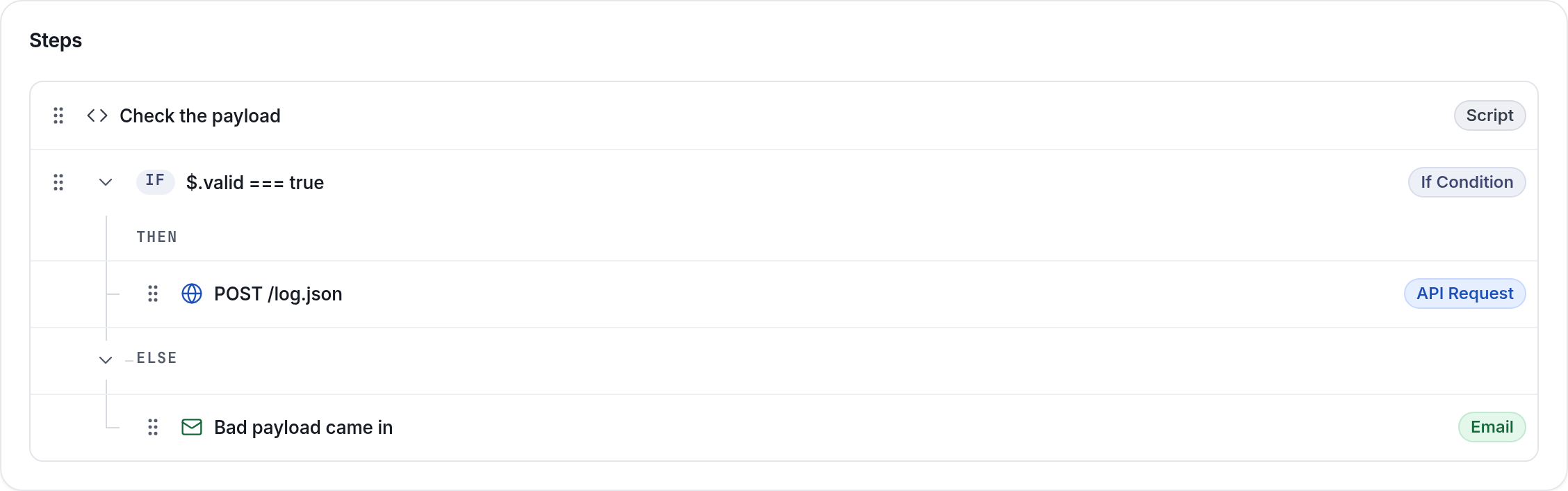
1. Script: Check the payload
var body = {};
try { body = JSON.parse($.default); } catch (e) { body = {}; }
$.valid = typeof body.reference === "string" && body.reference.length > 0;
$.log_body = JSON.stringify({
  category: "external_notes",
  message: "Note for " + body.reference + ": " + (body.note || "")
});
2. If Condition
- Condition:
$.valid === true
2a. API Request (in the then branch): POST to /log.json
- Body:
{{ log_body }} - Fail on bad response code: on
- Response variable:
log_res
2b. Email (in the else branch): let yourself know a bad payload came in. This is optional.
Try it from a terminal:
curl -X POST "https://glue.smoothpos.net/webhook/<guid>.json?auth=<auth>" \
  -H "Content-Type: application/json" \
  -d '{"reference":"TEST-1001","note":"Hello from the other system"}'
A 200 {} means the run was accepted. The job runs a moment later, so check the result in Smooth POS or in Glue errors, not in the curl response.
Chain Glue jobs with log categoriesA log entry with a
categoryfireslog_create, so another Glue job can listen for just this category with triggerlog_createand subtriggerexternal_notes.
Example 3: A scheduled sync that remembers where it got to
Goal: every 30 minutes, fetch products changed since the last run from a supplier system and create them in Smooth POS.
Trigger: Scheduled, cron */30 * * * *, time zone Australia/Sydney.
Private data:
supplier_key: the supplier API keysupplier_last_sync: how far the last successful run got, like2026-10-01T00:00:00Z
The pattern is: read the bookmark at the start, write it at the end, and only move it forward once the writes have worked.
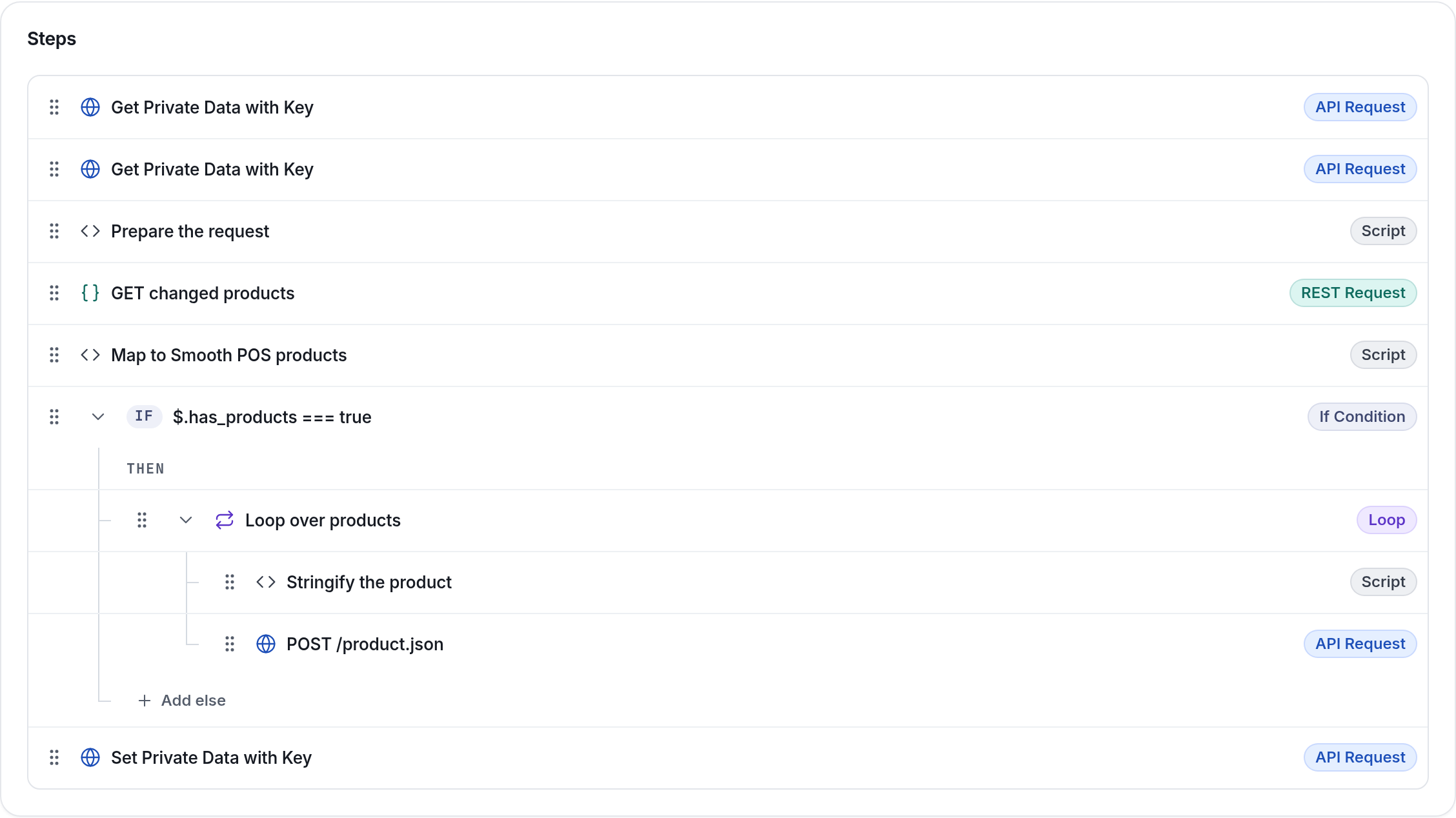
In the step list, steps 1, 2 and 7 all show their action (Get Private Data with Key or Set Private Data with Key), not the key they use, so open a step to see which key it reads or writes.
1. API Request: Get Private Data with Key supplier_key → key_res (Fail on bad response code on)
2. API Request: Get Private Data with Key supplier_last_sync → last_res (off, so the very first run works before the key exists)
3. Script: Prepare the request
Use btoa to build the Basic auth header:
var key = JSON.parse($.key_res.body).supplier_key.trim();
$.headers = JSON.stringify({
  "Authorization": "Basic " + btoa("api-user:" + key),
  "Accept": "application/json"
});

var since = "2000-01-01T00:00:00Z";
if ($.last_res && $.last_res.status === 200) {
  since = JSON.parse($.last_res.body).supplier_last_sync || since;
}
$.since = since;
$.run_started = new Date().toISOString();
4. REST Request: GET changed products
- URL:
https://api.supplier.example/v1/products?modified_since={{ since | url_encode }}&rows=250 - Headers (JSON):
{{ headers }} - Fail on bad response code: on. Nothing has been written yet, so a retry is harmless.
- Response variable:
products_res
5. Script: Map to Smooth POS products
var rows = JSON.parse($.products_res.body) || [];
$.products = rows.map(function (p) {
  return {
    view: "Dimensioned Product",
    style: p.styleCode,
    name: p.name,
    description: p.description || "",
    option_names: [],
    type: p.category || "",
    vendor: p.brand || "",
    tags: ["supplier-import"],
    metadata: { supplier: { id: String(p.id), modified: p.modifiedDate } },
    items: [{ sku: p.sku, barcode: p.barcode || "", price: p.price,
              option1: "", option2: "", option3: "",
              weight: 0, weight_unit: "kg", weight_grams: 0 }]
  };
});
$.has_products = $.products.length > 0;
$.i = 0;          // declared for the foreach below
$.product = null; // declared for the foreach below
6. If Condition $.has_products === true
6a. Loop over products, index variable i, data variable product
6a-i. Script $.product_body = JSON.stringify($.product);
6a-ii. API Request: POST to /product.json, Body {{ product_body }}, Response variable product_res
7. API Request: Set Private Data with Key
- Key:
supplier_last_sync - Post data:
{{ run_started }}
Things to notice:
- The bookmark is saved last, so a failed run picks up from the same point next time.
- Save the time the run started (or the newest modified date you received), not the time it finished, so changes made during the run aren't skipped.
POST /product.jsonalways creates a new product. Before creating one, decide how you'll avoid duplicates on a re-run: look it up by barcode withGET /item/barcode/{barcode}.json, keep the supplier ID inmetadata, or keep an ID map.- Page through large result sets, and respect the supplier's rate limits.
Example 4: Call Shopify with the Shopify GraphQL step
Goal: when an item changes in Smooth POS, look up the matching Shopify product variant by SKU.
Trigger: System Hook, item_update.
The store connection comes from your company's Shopify setup, so you don't put a domain or token in the step.
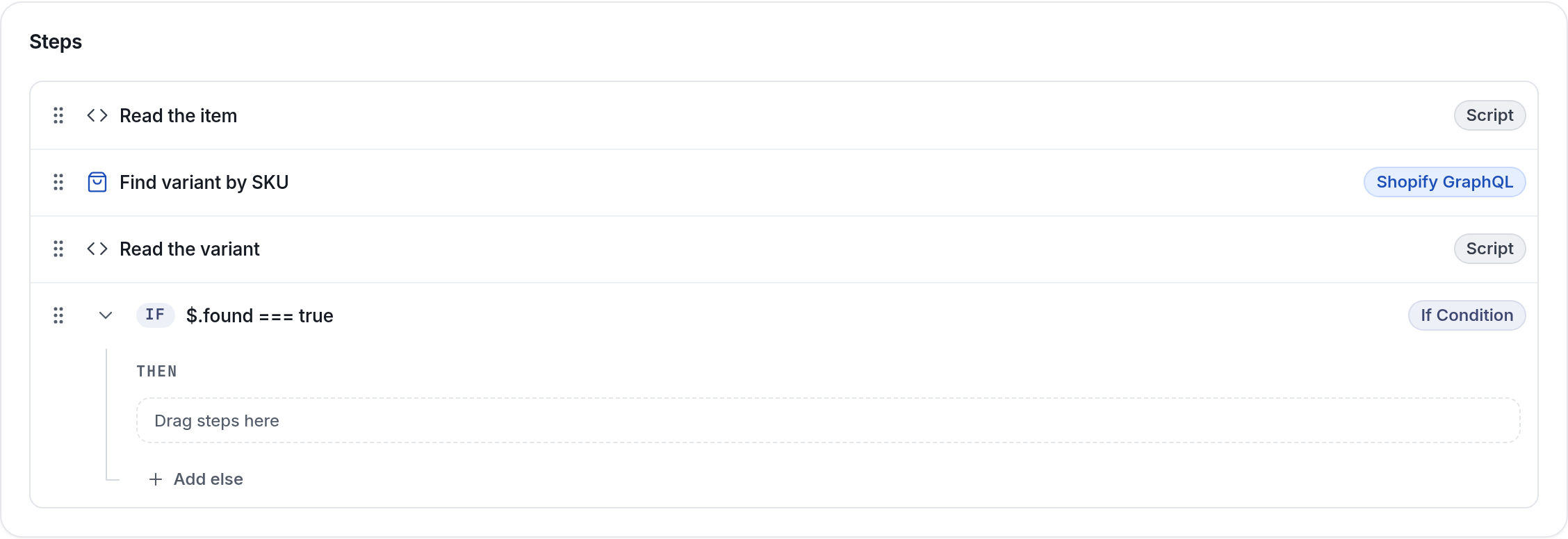
1. Script
var p = JSON.parse($.default);
var item = p.after || p;
$.gql_vars = JSON.stringify({ q: "sku:" + item.sku });
2. Shopify GraphQL
data field | Value |
|---|---|
end_point | graphql.json |
action | POST |
api_version | 2025-04 (the newest version in the editor's list), or leave it empty for the default |
gql_query | see below |
gql_variables | {{ gql_vars }} |
response_variable | shopify_res |
fail_bad_status | true |
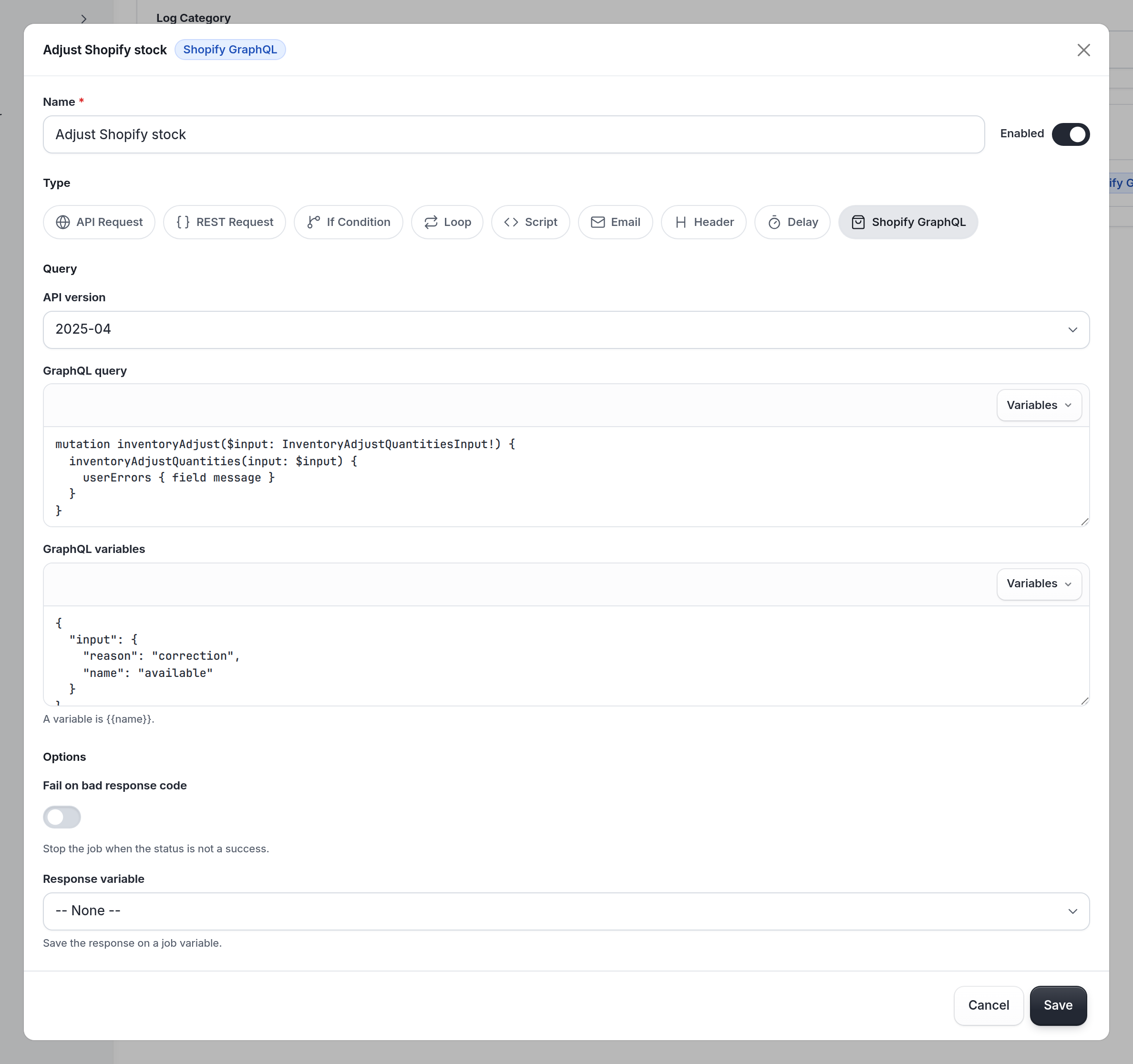
query FindVariant($q: String!) {
  productVariants(first: 1, query: $q) {
    edges { node { id sku inventoryItem { id } product { id title } } }
  }
}
Smooth POS adds the /admin/api/<version>/ part of the URL for you, so end_point is just graphql.json. It also builds the request body from gql_query and gql_variables and sends it as JSON.
3. Script
var r = JSON.parse($.shopify_res.body);
var edges = (r.data && r.data.productVariants && r.data.productVariants.edges) || [];
$.variant_id = edges.length ? edges[0].node.id : "";
$.found = edges.length > 0;
Then use an If Condition on $.found === true before any mutation. GraphQL can return 200 with userErrors in the result, so check for those in a script as well as the status code.
In the app, the Shopify GraphQL step has API version, GraphQL query and GraphQL variables fields, so you don't set end_point yourself.
Limits
Glue jobs run on shared servers, so keep them small and fast. Here are the limits, and what you'll see when you hit one:
| What | Limit | What happens when you hit it |
|---|---|---|
| Whole Glue job | 270 seconds | The job stops with job deadline exceeded: jobs may run at most 270s (GLUE_JOB_TIMEOUT_SECONDS). Selecting Run in the job editor has the same deadline. |
| Script step or If Condition | 60 seconds each | The step stops with an error that starts with halt, and the job fails. |
| HTTP steps (API Request, REST Request, Shopify GraphQL) | 300 seconds per request | The step fails with a timeout error, though the 270-second job deadline usually ends the job first. |
| Response from another system | 10 MB | The step fails with response body from <host> exceeds the 10485760 byte limit (GLUE_RESPONSE_MAX_BYTES). |
| Inbound webhook body | 1 MB | The webhook call is rejected with 413 webhook body exceeds the 1048576 byte limit (GLUE_WEBHOOK_MAX_BYTES), and the job doesn't run. |
| Job variables | 20 MB in total, checked after every step | The job fails with memory error: job variables are N bytes, more than the 20971520 byte limit (GLUE_MAX_VARIABLES_BYTES), where N is the size at the time. |
| Loops | 10,000 iterations per job, across all Loops in the job | The job fails with loop iteration limit exceeded: at most 10000 loop iterations per job (GLUE_MAX_LOOP_ITERATIONS). |
| Nesting | 10 levels below a top-level step (inside If Conditions and Loops) | The job fails with nesting depth limit exceeded: step "<name>" is nested more than 10 levels deep (GLUE_MAX_NESTING_DEPTH). |
| Jobs running at once | 10 per company | Extra runs get 503 company concurrency limit reached: 10 jobs already running for this company (GLUE_COMPANY_CONCURRENCY); retry later. They're retried automatically and don't count as errors. |
| Delay | 60 seconds | A longer duration is silently capped at 60 seconds, with no error. |
| Console output | 1000 entries or 256 KB per run | Later entries are dropped and the output is marked truncated: true. The job keeps running. |
When a limit is hit
- Failed runs show up in Glue › Errors, with the error message, so you can see which limit was hit. See Glue errors. The one exception is the 10-jobs-at-once limit: those runs simply wait and try again.
- Retries pick up where they can. When a job is retried, top-level REST Request, API Request, Shopify GraphQL and Email steps that already succeeded are skipped, and their response variables are restored, so later steps still see them. Steps inside an If Condition or a Loop aren't tracked, so they run again. See Order your steps so retries are safe.
- Editor tests aren't logged or retried. When you select Run in the job editor, the error comes straight back to you, and nothing goes to Glue › Errors.
Gotchas
Order your steps so retries are safe
A failed step with Fail on bad response code on stops the job, and the job is retried. On a retry, top-level REST Request, API Request, Shopify GraphQL and Email steps that already succeeded are skipped and their response variables restored. Anything inside an If Condition or a Loop runs again, and so does every Script step. So:
- Put the calls that change things (POST or PUT, emails) at the top level where you can, so a retry doesn't repeat them.
- If a write has to sit inside an If Condition or a Loop, make it safe to repeat, for example with a
unique_idor an "update if it exists" call on the other side. - Do your lookups (private data, Smooth POS lookups, external GETs) before the writes that depend on them, and save any bookmark last.
For lookups you can live without (like a store name), turn off Fail on bad response code and handle a missing result in the next script.
Split calls that don't depend on each other
If one call can fail for reasons unrelated to another, give each its own REST Request step, with its own If Condition. For example, send email consent and SMS consent separately: if SMS isn't set up on the marketing account, the SMS call fails but the email subscription still goes through.
Keep secrets in private data
- Never paste API keys into steps. Store them in private data and read them with API Request → Get Private Data with Key.
- The value always comes back as a string inside
{"<key>": "…"}. If you stored JSON, parse it again. - Use the key exactly as you saved it, and trim stray whitespace from the value.
Pin the other API's version
Many APIs need a version header (Klaviyo uses revision). Set it explicitly and keep an eye on retirement dates, because old versions eventually stop working.
Phone numbers
SMS platforms usually want E.164 (+61400000000). Normalise numbers in a script before sending:
function toE164(phone, defaultCountry) {
  if (!phone) return "";
  if (typeof phone === "object" && phone.national_number) {
    return "+" + phone.country_calling_code + phone.national_number;
  }
  var s = String(phone).split(" (")[0].replace(/[^\d+]/g, "");
  if (s.charAt(0) === "+") return s;
  if (s.charAt(0) === "0") return (defaultCountry || "+61") + s.slice(1);
  return "+" + s;
}
Test and debug
- Run it by hand first. While you build, set the job to Webhook so you can run it with a test payload, such as a copy of a real sale with a fake ID. Switch it back to System Hook and pick the trigger again when you're done.
- Use fake IDs and a test profile. Use sale IDs no real sale will have, like
999000001, and a test contact like[email protected], so test data is easy to find and remove in the other system. - Remember that tests run for real. Every API call, email and Shopify call actually happens.
- Log as you go. Use
console.log(orinfo,warnanderror) in Script steps. When you select Run in the job editor, each entry appears in the Console with the step it came from. Logs aren't kept for real runs, so test with a sample payload when you need them.
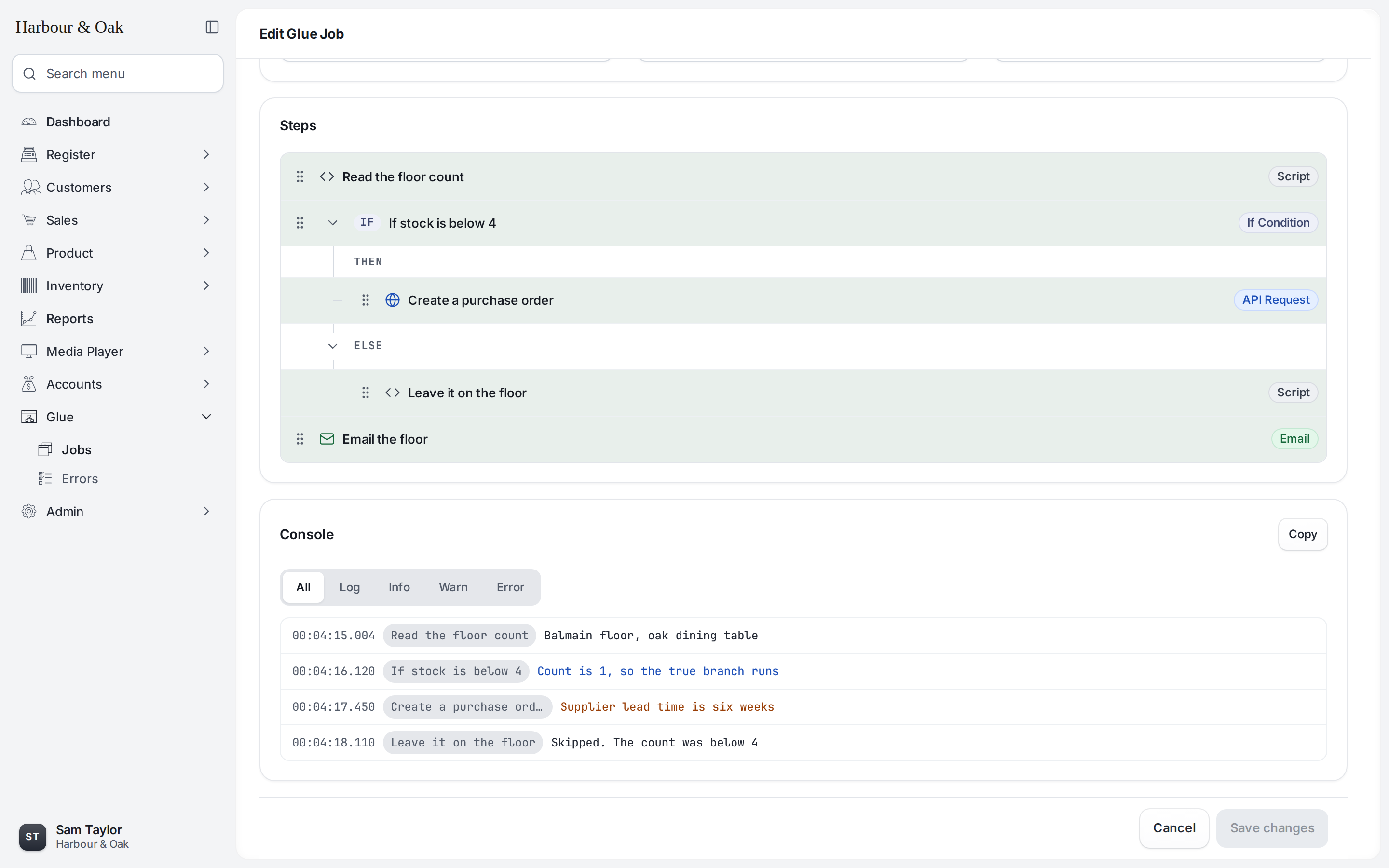
In the app, select Run. The steps that ran are highlighted, and the Console underneath lists each log entry with the time and the step it came from. Filter it by All, Log, Info, Warn or Error, or select Copy to grab the lot. Objects and arrays you log are written as JSON, and up to 1,000 entries (256 KB) are kept per run.
- Read the response variables. The
statusandbodyof each response variable usually tell you exactly what went wrong, such as a400with the other API's error message. - Check for de-duplication on the other side. Run the same test payload twice and make sure the other system shows one event.
Debug variables can hold secretsYour variables and console output include whatever you read from private data, including API keys. Don't log secrets, check the Console before you share a screenshot, and remove debug logging and variables that hold secrets before you go live.
Glue errors
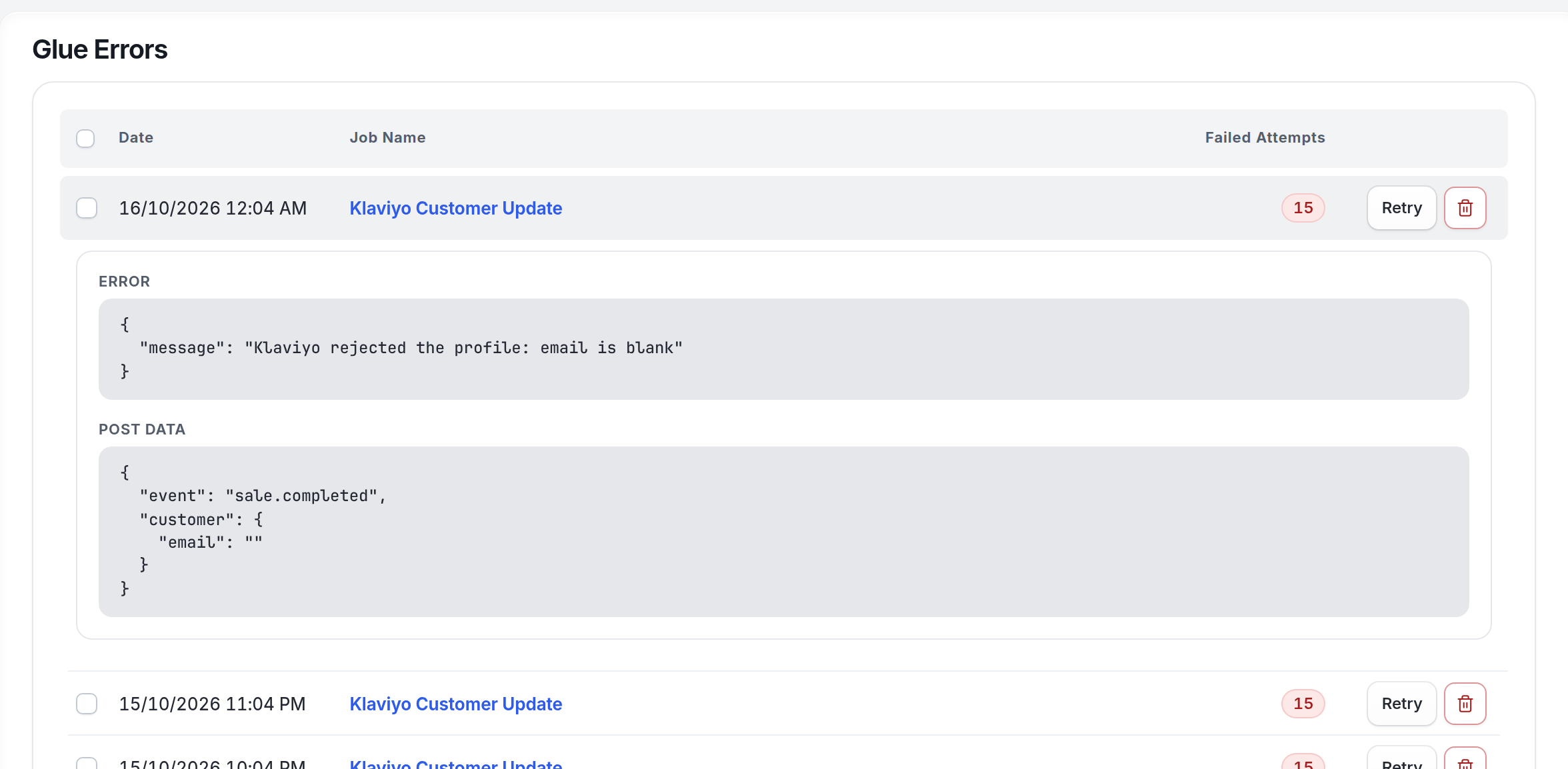
When a real run fails, it's logged as a Glue error. In the app, open Glue › Errors. Each row shows the job, when it failed and its Failed Attempts. Expand it to see the Error and the Post Data, then select Retry or delete it. Through the API, use List Glue errors. Each error includes the Glue job's name, the endpoint, the error message, the data involved and failed.
Getting an error re-runs it
GET /glue/error/{id}.jsonruns the failed Glue job again. Once you've dealt with an error, clear it withDELETE /glue/error/{id}.json. When there are no errors, the list isnullrather than[].
Updated 44 minutes ago