
How to process a sale
Open your register and ring up a sale.
Here's how to ring up a sale at the register, from opening up for the day to sending the sale to payment.
1. Log in and open the register
- Log in to Smooth POS with your store user. If you don't have one yet, see Creating a store user.
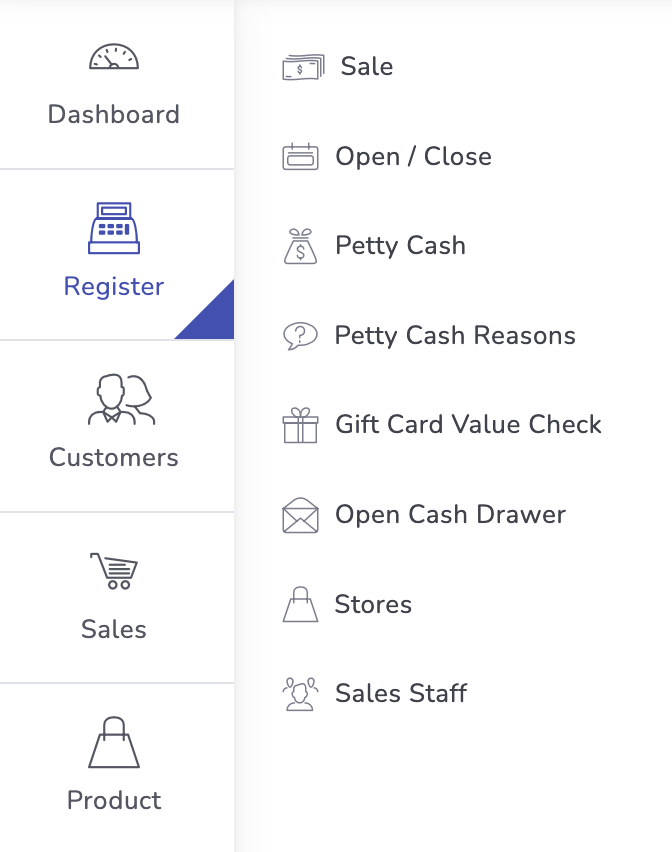
- If you haven't opened the register today, go to Register → Open / Close and open it.
2. Start a sale
- Go to Register → Sale.
- Enter your POS code or name, then select Login.
3. Get to know the sales screen
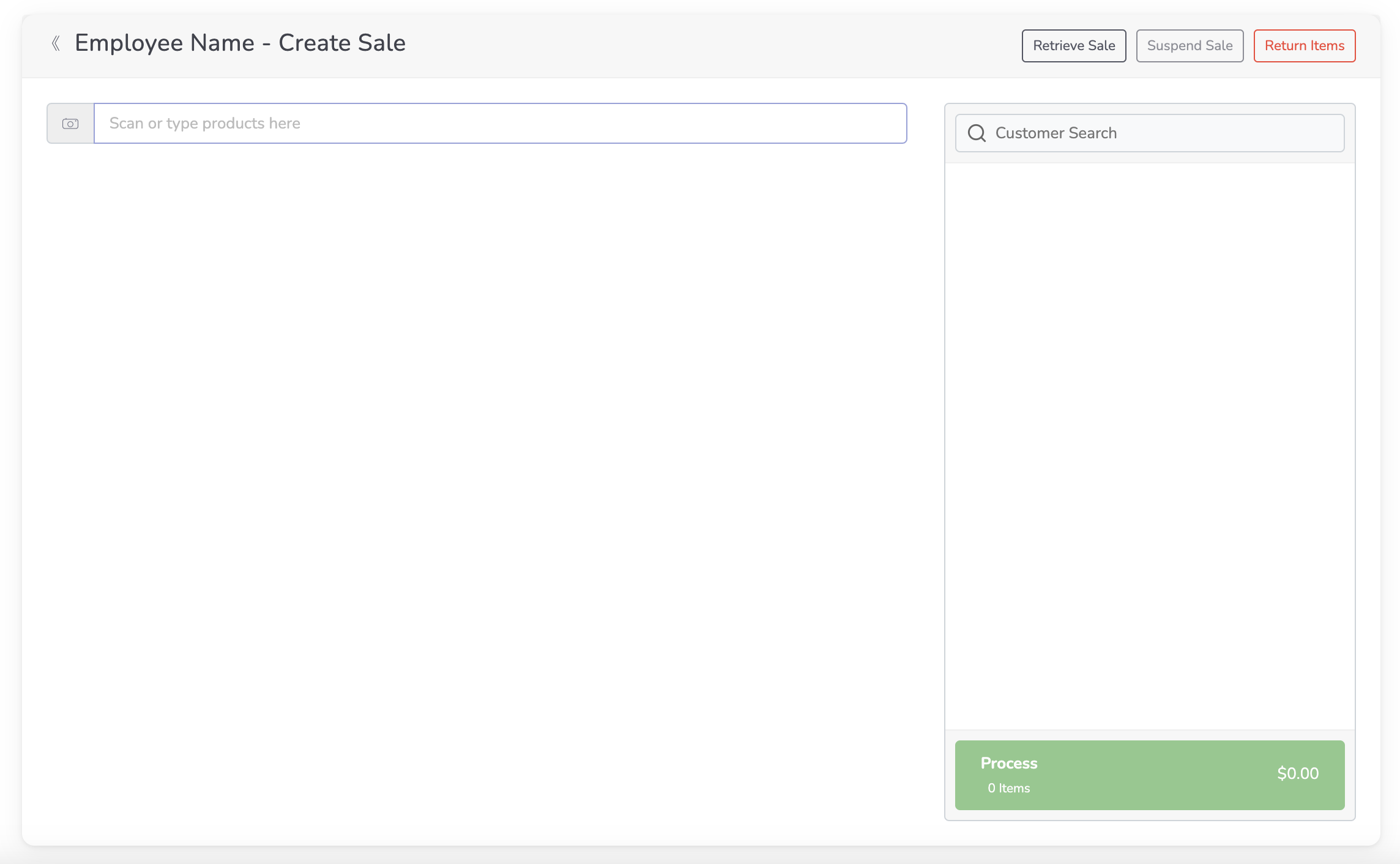
The sales screen has three areas:
- Top row: who's logged in, plus these buttons:
- Suspend Sale parks the current sale so you can come back to it later.
- Retrieve Sale brings back a sale you suspended.
- Return Items lets you scan or search for a receipt and return items from it.
- Left side: search for products, or scan barcodes. On a phone or tablet, tap the camera button to scan with your camera.
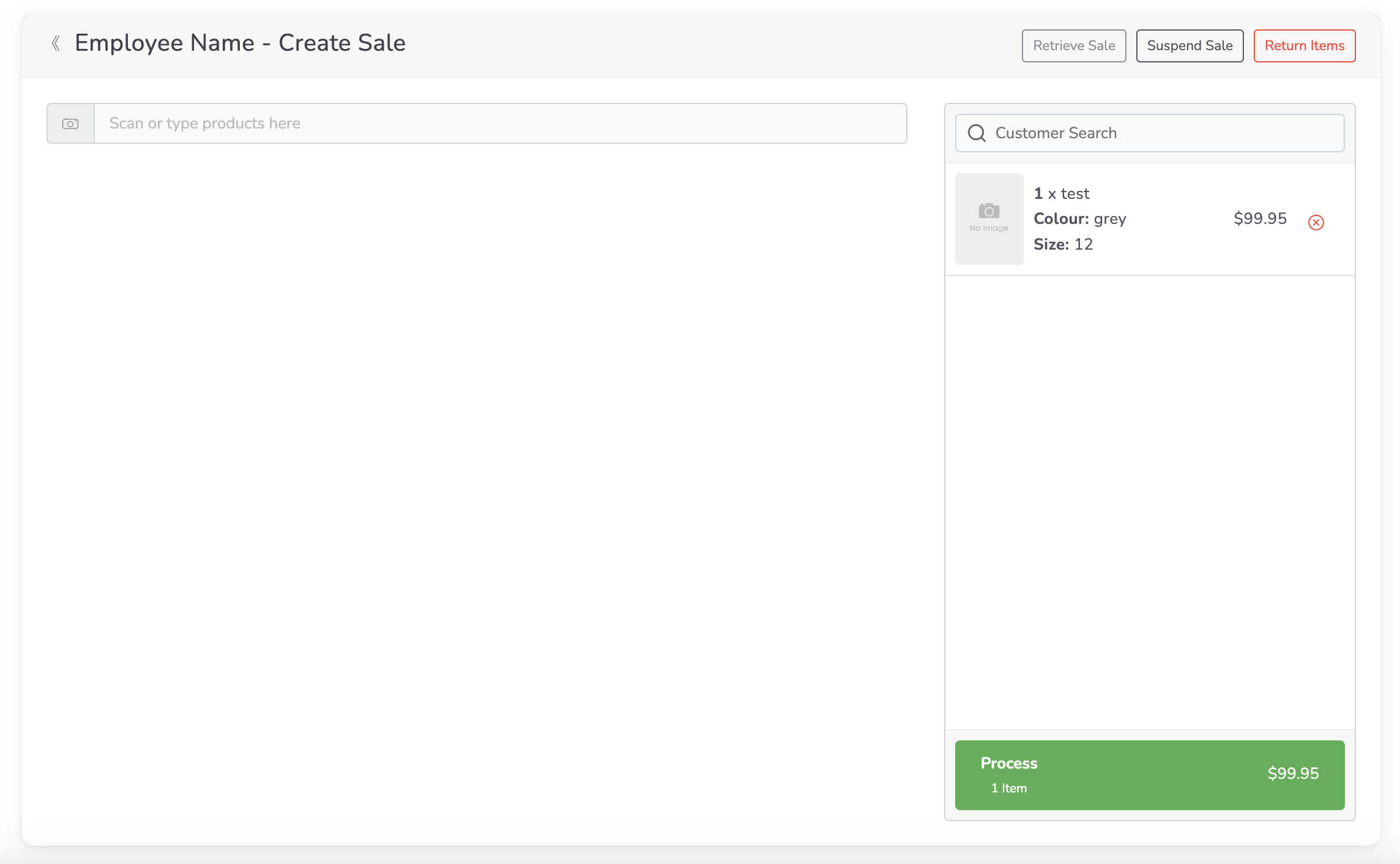
- Right side: the items on the current sale.
4. Add items and go to payment
- Scan or search for each item to add it to the sale.
- To give a discount, select the item on the right side.
- When you're ready, select Process to move to the payment screen.
Updated 26 days ago
Did this page help you?